
How to Set Your Default Messaging App on Android
How-To
If you can read your old text messages but cannot send a new one, or if texts arrive in an app you never chose, the cause is almost always the same. Your phone has more than one messaging app installed, and the wrong one has been handed the job.
Android calls that job the default SMS app. Only one app can hold it at a time. This page shows you how to check which app has it, and how to hand it to a different one.
It takes under a minute, and you cannot lose any messages doing it.
Get Messenger Chat Home free
Texting that starts on your home screen instead of buried in a menu.
Download on Google PlayWhat "default messaging app" actually means
Your phone can hold several messaging apps at once. You might have the one that came with the phone, plus one you installed yourself, plus something a carrier added without asking.
All of them can open. All of them can show you your existing conversations. But Android will only let one of them actually handle incoming and outgoing texts. That is the default.
This is deliberate. If two apps both tried to receive the same message, you would get duplicates, and neither would reliably know which messages you had already read.
So the rule is simple. One app does the work. The others are just windows onto the same message history.
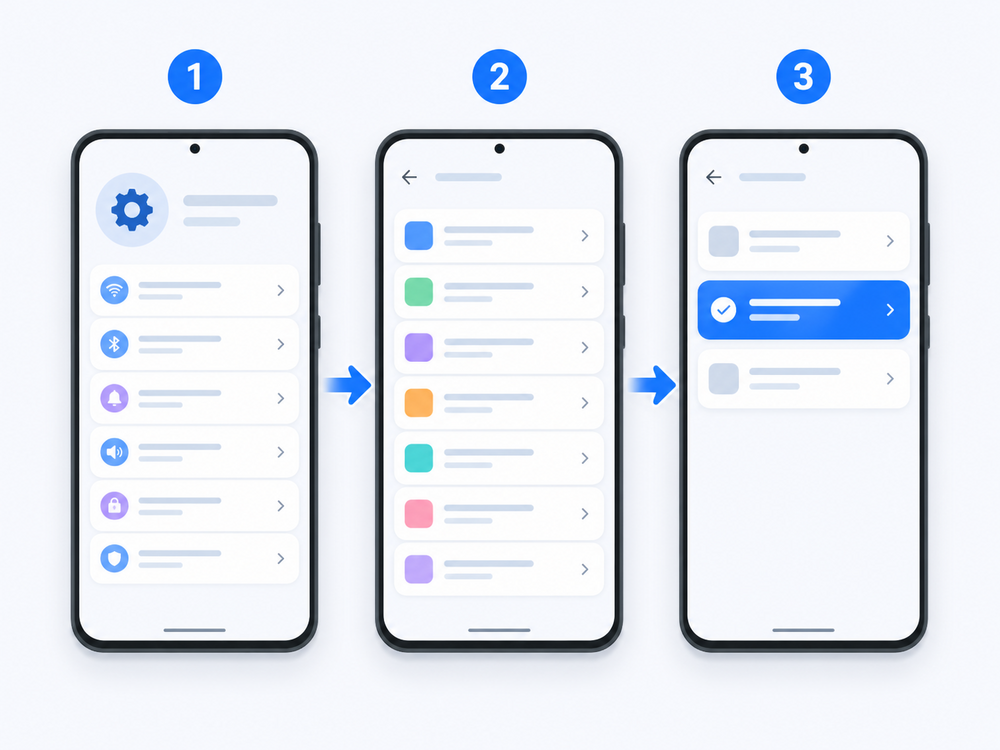
The short version
- Open Settings, the grey gear icon.
- Tap Apps, then Default apps.
- Tap SMS app and choose the one you want.
That is the whole thing on most Android phones. If your menus look different, the brand-specific steps are below.
Step by step, by phone brand
Google Pixel and most stock Android phones
- Open Settings, the grey gear icon.
- Tap Apps.
- Tap Default apps. You may need to tap Advanced first on older versions.
- Tap SMS app.
- Tap the app you want. The change happens straight away.
Samsung Galaxy
Samsung words this differently, which is why Samsung owners often cannot follow generic instructions.
- Open Settings.
- Tap Apps.
- Tap Choose default apps.
- Tap SMS app.
- Select your app.
Samsung documents this on its own support site, and the wording there matches what you will see on the screen: Change the default messaging app on your Galaxy phone.
Motorola, OnePlus, Nokia and similar
These stay close to stock Android, so the Pixel steps above will normally work. If Default apps is not directly under Apps, try Settings → Apps → Advanced → Default apps.
If you cannot find the menu at all
There is a shortcut that works on nearly every Android phone. Open the messaging app you want to use. If it is not currently the default, it will usually show a banner at the top saying so, with a button to make it the default. Tapping that button does the same thing as the menu, and takes you straight there.
What happens to your messages when you switch
Nothing is lost. This is the part that worries people most, and it is the part you can stop worrying about.
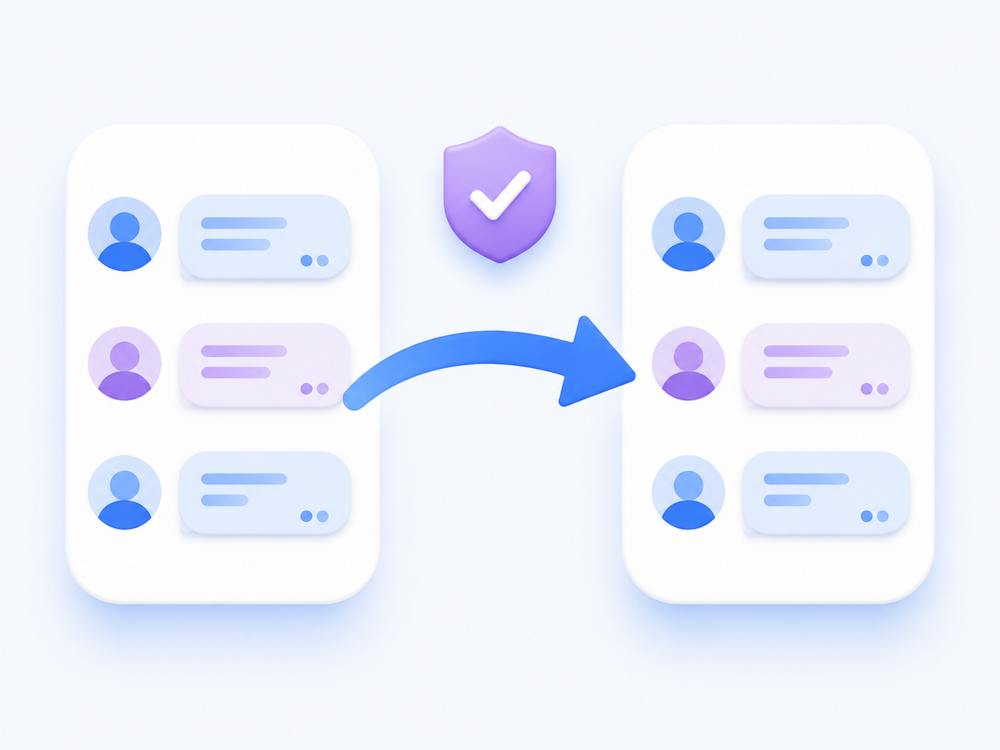
Your text messages are stored in a shared database on the phone itself. They do not belong to any one app. When you switch defaults, the new app reads the same database, so your conversations are all still there, in order, with the same contacts.
You can switch back immediately and everything will look exactly as it did.
Two small things do change:
Notification settings do not carry over. The new app has its own sound and vibration settings. If your alerts go quiet after switching, that is why. Check the notification settings for the new app.
Some newer chat features may need to reconnect. Modern texting uses a standard called RCS, which adds things like typing indicators and better photo quality. When you change default apps, RCS sometimes takes a few minutes to re-register. Standard texts keep working throughout. The GSMA's RCS Universal Profile is the industry specification behind those features, if you want to understand what your carrier is actually supporting.
Why an app you did not choose keeps taking over
A few common reasons:
You installed something new. Many messaging apps ask to be made the default the first time you open them, and it is easy to tap yes without reading.
A system update reset it. Major Android updates occasionally restore the phone maker's own app as the default.
Someone else set it up. If a family member or a shop assistant configured the phone, they may have picked for you.
None of these are permanent. Change it back using the steps above and it will stay changed.
If the setting will not stick
Rare, but it happens. Work through these in order.
- Restart the phone. This resolves it more often than it should.
- Check the app has SMS permission. Settings → Apps → your app → Permissions → SMS. Without this, Android may refuse to make it the default.
- Make sure the app is fully updated. An out-of-date app can be rejected as a default handler.
- Check for a work profile. If your phone is managed by an employer, an administrator can lock which apps are permitted. You will usually see a small briefcase icon if this applies.
Google's own Android Help guide to default apps covers the permission requirements in more detail.
Frequently asked questions
Will I lose my old text messages if I change my default SMS app?
No. Text messages are stored on the phone in a shared database rather than inside one app. When you switch, the new app reads the same messages, so your full history is still there.
Can two apps receive my texts at the same time?
No. Android allows only one default SMS app at a time. Other messaging apps can still display your existing conversations, but only the default one sends and receives.
Why did my notification sound change after switching apps?
Each app keeps its own notification settings. The new default does not inherit the old app's sound or vibration choices. Set them again in Settings, then Notifications, then App notifications.
How do I know which app is currently my default?
Go to Settings, then Apps, then Default apps, then SMS app. The one with the filled dot beside it is your current default.
Can I change it back afterwards?
Yes, as many times as you like. There is no limit and no waiting period, and your messages stay intact each time.
If you find yourself digging through menus just to reach a conversation, the default app setting is only half the problem. The other half is that your messages are sitting behind an icon you have to find first.
Try Messenger Chat Home
Set it as your default and your conversations live on the home screen. One swipe, no hunting.
Download free on Google Play