
How to Enable Messenger Chat Home and Set It as Your Default
Setup Guide
Messenger Chat Home does two jobs, and it needs your permission for both.
It replaces your home screen, so your recent conversations sit in front of you instead of behind an icon. And it handles your text messages, so you can read and reply without opening a separate app.
Those are two separate settings on Android, which is why setup has two steps rather than one. This page walks through both, in order, with what to expect on screen.
If you have already installed the app and something is not working, skip to the troubleshooting section near the bottom. Most problems come down to one of the two steps not being completed.
Step 1: Install the app
Open the Google Play Store, search for Messenger Chat Home, and tap Install. The app is free.
When it finishes, tap Open. Do not tap the home button yet. The setup prompts only appear the first time you open the app, and skipping past them is the single most common reason setup goes wrong.
Step 2: Make it your home screen
This is the step that changes what you see when you press the home button.
The app will prompt you. Tap Switch your Launcher, then choose Messenger Chat Home from the list, then confirm.
If the prompt does not appear, or you tapped past it:
- Open Settings.
- Tap Apps.
- Tap Default apps. On Samsung phones this is Choose default apps.
- Tap Home app.
- Select Messenger Chat Home.
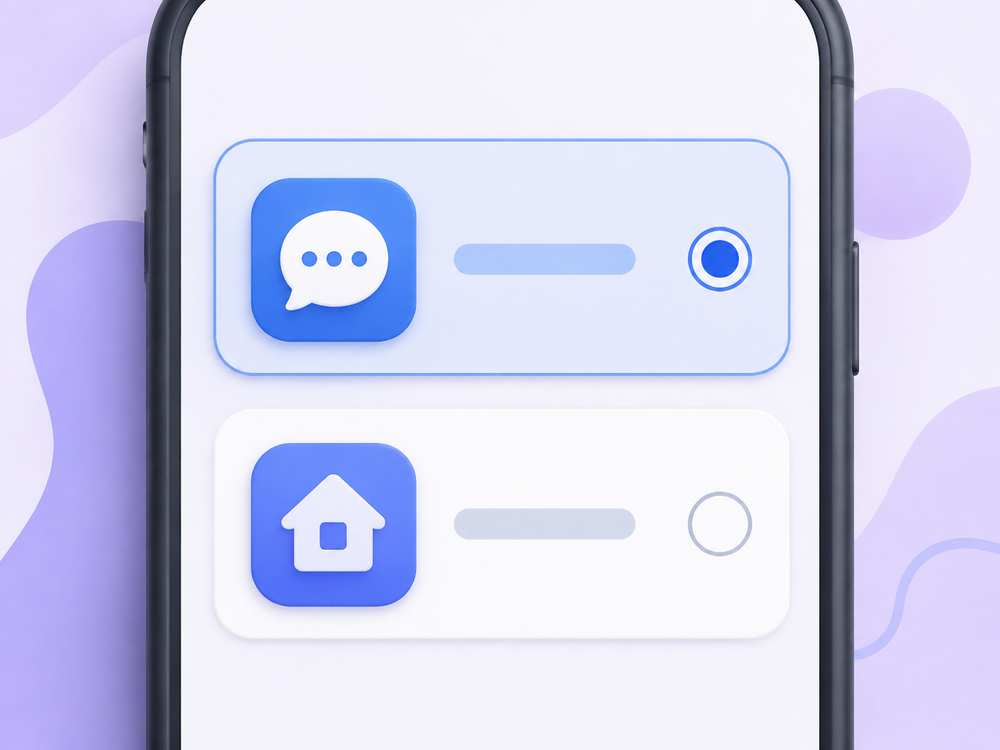
Your home screen will look different immediately. Your wallpaper stays, and every app you had is still installed, but the layout changes and a message widget appears.
Nothing has been deleted. If an app icon is not where it used to be, it is in the app drawer. Swipe up from the bottom of the screen to see everything installed on the phone.
Android treats the home screen as a replaceable component, which is why this works at all. If you want the background on that, we have a plain-English explainer on what a launcher app actually is.
Step 3: Make it your default texting app
This is the separate setting, and it is the one people miss.
Setting Messenger Chat Home as your home screen does not automatically let it send texts. Android keeps those permissions apart on purpose.
In the app, tap Switch your Default SMS App and confirm. Or set it manually:
- Open Settings.
- Tap Apps.
- Tap Default apps, or Choose default apps on Samsung.
- Tap SMS app.
- Select Messenger Chat Home.
Your existing text messages will appear straight away. They are stored on the phone rather than inside any one app, so nothing needs importing and nothing is lost.
If you want the fuller explanation of how default SMS apps work across different phone brands, that is covered in our guide to setting your default messaging app.
Step 4: Let it show your contacts
When you first open a conversation, the app will ask for permission to read your contacts.
If you allow it, your messages show people's names. If you decline, everything still works, but you will see phone numbers instead of names.
This is the cause of one of the most common complaints we see, which is that contacts are hard to reach or that the app only shows numbers. It is almost always this permission.
To fix it after the fact: Settings → Apps → Messenger Chat Home → Permissions → Contacts → Allow.
Using the home screen widget
Once setup is done, the widget is the part you will actually use day to day.
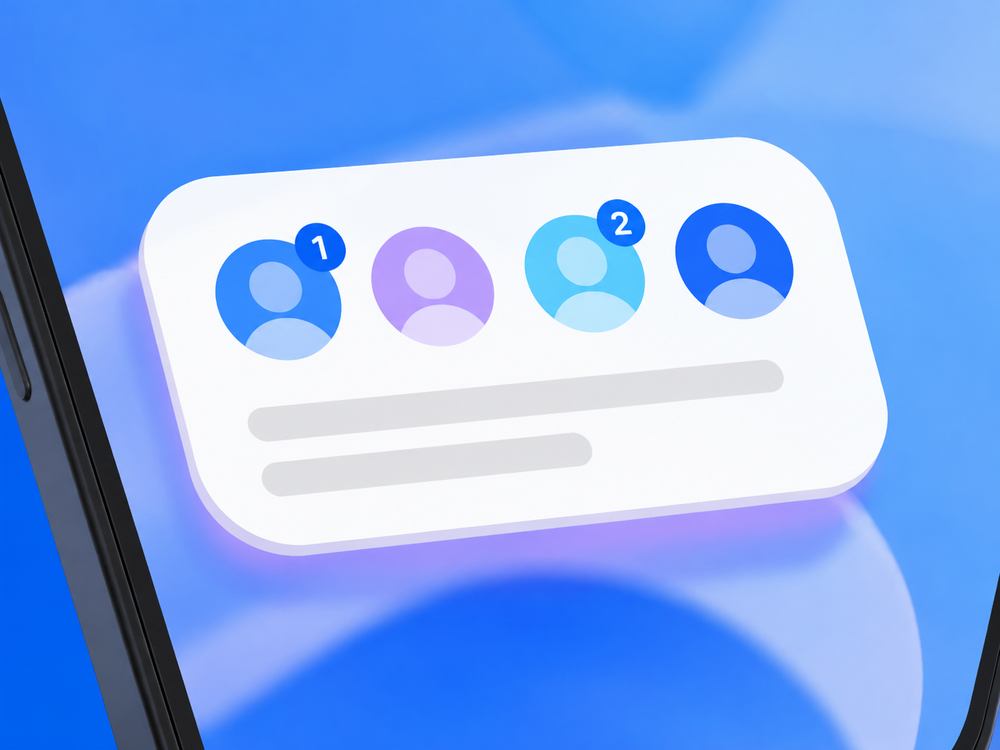
The contact row shows the people you message most. Tap a face to open that conversation directly.
The unread badge is the small number on a contact. It tells you how many messages you have not read from that person.
Swipe right from the home screen to open your full inbox. This is the gesture that replaces hunting for an app icon.
If something is not working
My texts are not sending.
Step 3 was not completed. Check Settings → Apps → Default apps → SMS app and make sure Messenger Chat Home is selected.
I see phone numbers instead of names.
Contacts permission was declined. Settings → Apps → Messenger Chat Home → Permissions → Contacts → Allow.
My home screen did not change.
Step 2 was not completed. Check Settings → Apps → Default apps → Home app.
I cannot find one of my apps.
Swipe up from the bottom of the home screen to open the app drawer. Everything installed is listed there alphabetically.
I want to go back to my old home screen.
Settings → Apps → Default apps → Home app, then pick your previous one. The change is instant and nothing is removed.
For anything not covered here, the Messenger Chat Home FAQ has the fuller list, and Google's Android Help centre covers the underlying phone settings.
Frequently asked questions
Do I have to set Messenger Chat Home as both my home screen and my texting app?
No. They are separate settings and you can use either one on its own. Setting both gives you the full experience, where conversations appear on the home screen and you can reply without opening another app.
Will setting a new home screen delete my apps?
No. Changing your home screen only changes the layout you see. Every app stays installed. Swipe up from the bottom of the screen to open the app drawer and see all of them.
Why does the app show phone numbers instead of my contacts' names?
The contacts permission was not granted. Go to Settings, then Apps, then Messenger Chat Home, then Permissions, then Contacts, and choose Allow. Names will appear immediately.
Can I go back to my old home screen later?
Yes. Go to Settings, then Apps, then Default apps, then Home app, and select your previous home screen. The change takes effect straight away and nothing is deleted.
Is Messenger Chat Home free?
Yes. The app is free to download and use. It is supported by ads, and there is an optional paid subscription inside the app that removes them.
Setup is two settings, and they are separate because Android keeps them separate. Once both are done the app stops asking and simply works.
Get started with Messenger Chat Home
Free on Google Play. Large, readable text and your conversations one swipe away.
Download now