
Android Message App Settings: A Plain-English Guide
Getting Started
Most people never open their message settings until something goes wrong. The texts stop arriving. The notification sound vanishes. A message shows up in one app but not the other. Then you go looking, and you find a screen full of switches nobody ever explained.
This guide explains what each of those switches actually does. No jargon, no assumptions about what you already know. If you have ever felt that your phone was changed without your permission, this is the page that tells you where the controls are.
Everything here applies to Android phones generally. Samsung, Google Pixel, Motorola and others move things around slightly, so we have noted where the wording differs.
Get Messenger Chat Home free
Put your conversations right on your home screen. No hunting for the app.
Download on Google PlayWhere message settings actually live
There are two separate places, and this trips up almost everybody.
Inside the messaging app. Open your messaging app, look for a gear icon or three dots, usually top right. These settings control how the app behaves: how conversations are sorted, whether you see read receipts, what your text looks like.
Inside the phone's own Settings app. This is the grey gear icon on your home screen or in your app list. These settings control what the phone permits the app to do: whether it can send notifications, whether it is the default handler for text messages, what it is allowed to access.
When someone tells you to "check your message settings" and you cannot find what they described, this is usually why. You are in one place and they meant the other.
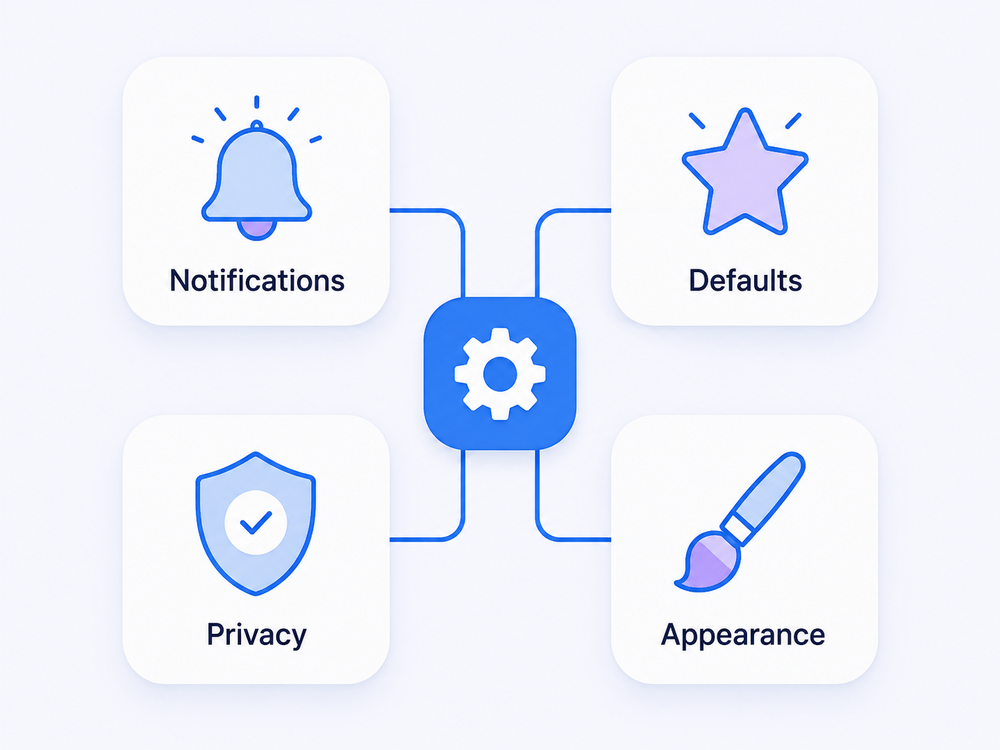
The four settings that matter most
1. Notifications
This decides whether your phone tells you a message arrived, and how.
Go to Settings → Notifications → App notifications, then find your messaging app. On Samsung phones it is Settings → Notifications → App notifications as well, though the list is sorted differently.
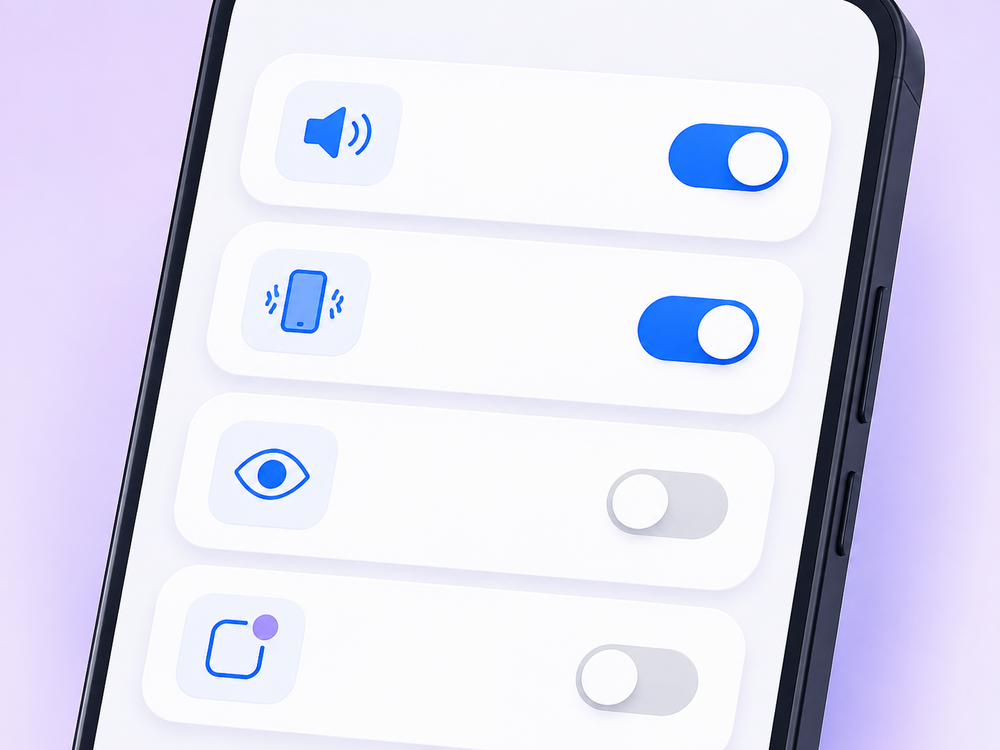
Inside, you will usually find separate switches for:
- Sound. Whether a tone plays.
- Vibration. Whether the phone buzzes.
- Pop on screen. Whether the message appears as a banner while you are using the phone.
- Show content. Whether the actual words appear on your lock screen, or just the sender's name.
That last one is worth a moment's thought. If you leave your phone on a table, anyone walking past can read your messages when it lights up. Turning off Show content means they see that a message arrived, but not what it says.
Google publishes a full breakdown of Android's notification controls in its Android Help notification guide, which is the most reliable reference if your phone's menu wording differs from ours.
2. Your default messaging app
Android lets you install more than one messaging app, but only one can actually send and receive your texts. That one is called the default SMS app.
If your messages have stopped sending, or you can read old texts but cannot reply, this setting is very often the cause. You have two messaging apps installed and the wrong one is holding the job.
You will find it at Settings → Apps → Default apps → SMS app. Samsung phones say Settings → Apps → Choose default apps → SMS app.
This one matters enough that we wrote a separate walkthrough for it, with the exact taps for each phone brand. It is linked at the bottom of this page.
3. Privacy and permissions
Permissions decide what a messaging app is allowed to reach.
Go to Settings → Apps, tap your messaging app, then tap Permissions. You will typically see:
- SMS. Required. Without it the app cannot read or send texts at all.
- Contacts. Optional, but without it you see phone numbers instead of names.
- Photos and media. Needed to attach pictures.
- Microphone. Needed only if you dictate messages by voice.
- Phone. Used to place a call directly from a conversation.
You can switch any of these off at any time. The app will keep working, but the related feature stops. If you turn off Contacts, your messages still arrive, they just show up as numbers.
Android's permission model is documented properly in the Android Developers permissions overview if you want to understand what an app can and cannot do once you grant something.
4. Appearance and readability
This is the one most people never find, and it is the one that helps most.
Text size is controlled by the phone, not the app. Go to Settings → Display → Font size and style, or on some phones Settings → Accessibility → Display size and text. Drag the slider and every app gets larger text, including your messages.
There is usually a separate Display size control that enlarges buttons and icons as well as words. If you find yourself squinting or tapping the wrong thing, adjust both. Nothing breaks, and you can move the slider back at any time.
The W3C's Web Content Accessibility Guidelines set the reasoning behind why text resizing matters, and phone makers follow the same logic in their own accessibility menus.
Settings worth checking once, then forgetting
A few that solve specific annoyances:
Message organisation. Many apps sort conversations automatically into tabs. If a text seems to have vanished, check whether it landed in a different tab rather than assuming it was deleted.
Read receipts. Controls whether the other person can see that you opened their message. Off by default for standard texts, on by default in some chat apps.
Auto-delete old messages. Some apps quietly remove texts after a set period to save space. If your older conversations keep disappearing, this is why.
Emergency alerts. Found under Settings → Notifications → Wireless emergency alerts. These are the loud weather and public safety warnings. You can turn off the test alerts and keep the real ones.
When something is wrong, check these three first
Most messaging problems come down to one of three things. Before you reinstall anything or call anyone, try these in order.
- Is the right app set as default? Settings → Apps → Default apps → SMS app.
- Are notifications switched on for that app? Settings → Notifications → App notifications.
- Does the app have SMS permission? Settings → Apps → your app → Permissions → SMS.
That sequence resolves the large majority of "my texts stopped working" situations, and none of it risks losing a single message.
Frequently asked questions
Will changing my message settings delete my texts?
No. Your messages are stored on the phone itself, separately from these settings. Changing a notification sound, switching your default app, or adjusting text size does not remove any conversation.
Why do my message settings look different from my friend's phone?
Phone makers customise Android. Samsung, Google, Motorola and others rename menus and move them around. The settings themselves exist on every Android phone, but the path to reach them varies by brand and by Android version.
Can I have two messaging apps installed at once?
Yes. You can install as many as you like. Only one can be the default that actually sends and receives texts, but the others will still open and show your existing message history.
What happens if I turn off a permission by mistake?
The related feature stops working, but nothing is lost. Go back to Settings → Apps → your app → Permissions and switch it on again. The feature returns immediately.
Where do I change how big the text is in my messages?
In the phone's settings, not the app's. Go to Settings → Display → Font size and style. This changes text everywhere on the phone, including messages.
Message settings look intimidating because nobody ever explains them. In practice there are only four that matter, and once they are set correctly you will not need to touch them again.
If the constant hunting for your messaging app is the real frustration, that is a problem worth solving at the home screen rather than in a settings menu.
Try Messenger Chat Home
Your conversations, right on the home screen. Large, clear text and one swipe to your inbox.
Download free on Google Play