
Home Screen
A crowded home screen is not just untidy. It slows you down every time you pick up the phone, because your eye has to search a field of similar-looking squares for the one you wanted.
Tidying it is not about neatness for its own sake. It is about making the four or five things you actually use easy to hit without thinking.
Nothing here uninstalls anything, and everything can be undone.
Get Messenger Chat Home free
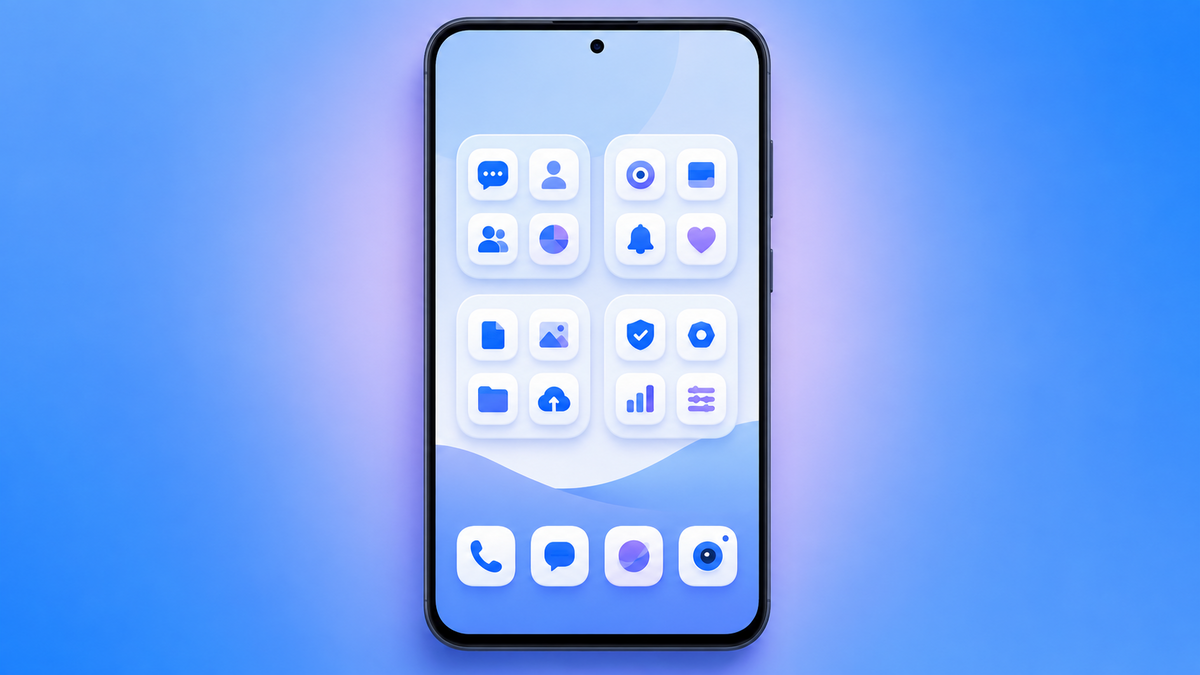
A home screen organised around people rather than apps.
Download on Google PlayStart by deciding what earns a place
Before moving anything, look at your home screen and ask which of these you opened in the last week.
Most people find the honest answer is five or six. Everything else is there because it arrived there, not because it was chosen.
Those five or six should be on the first screen, large, and spaced apart. Everything else can live in the app drawer, which you reach by swiping up. Nothing needs to be visible to be available.
Moving icons around
Press and hold an icon until it lifts, then drag it. Other icons shuffle aside to make room. Lift your finger to drop it.
To move something to a different page, drag it to the edge of the screen and hold. The screen slides across, and you drop it on the new page.
Two things worth knowing:
The bottom row stays put. Most phones keep a fixed row of four or five icons at the bottom, visible on every page. This is the most valuable space on the phone. Put the things you use most there.
Empty space is allowed. You do not have to fill the grid. Gaps make the icons that are there easier to find and easier to hit.
Folders
A folder groups several apps into one icon. Useful for things you need occasionally but do not want on display.
To make one: drag one icon directly on top of another and hold for a moment. A folder forms around both.
To name it: open the folder and tap the name field at the top. Short names work better. "Bank" beats "Banking and Finance Apps".
To add more: drag another icon onto the folder.
To take one out: open the folder, then drag the icon out onto the home screen.
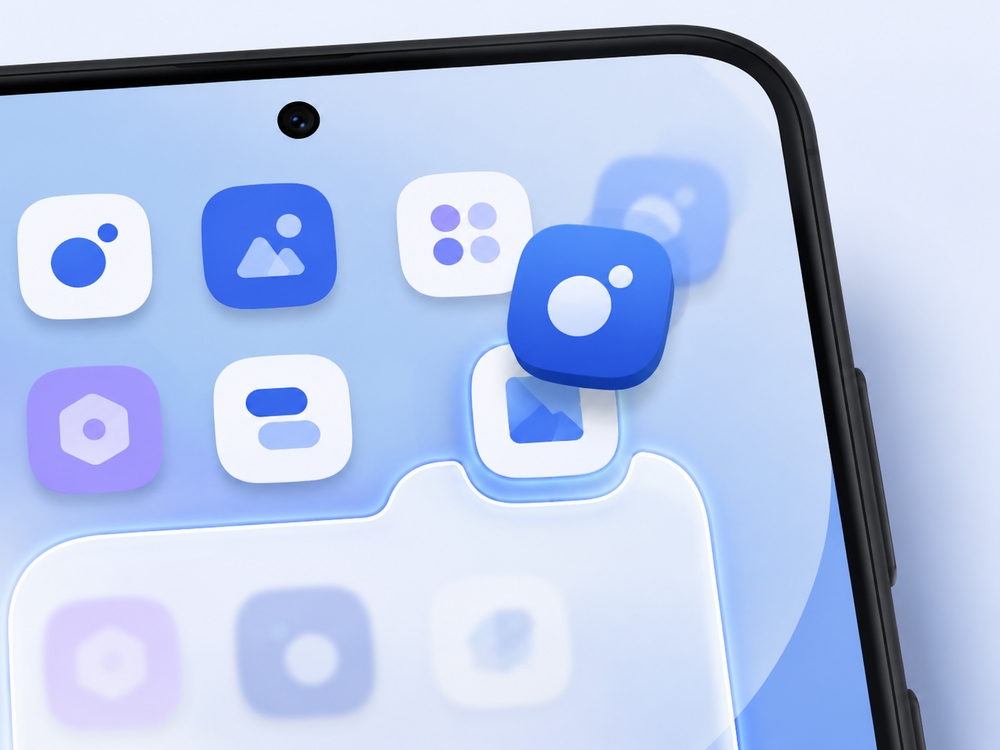
A word of caution. Folders hide things. If you put an app in a folder you will open it less, which is fine for the ones you rarely need and a mistake for the ones you use daily. Do not fold away your messages or your phone.
Making icons bigger
This is the change that helps most and that most people never find.
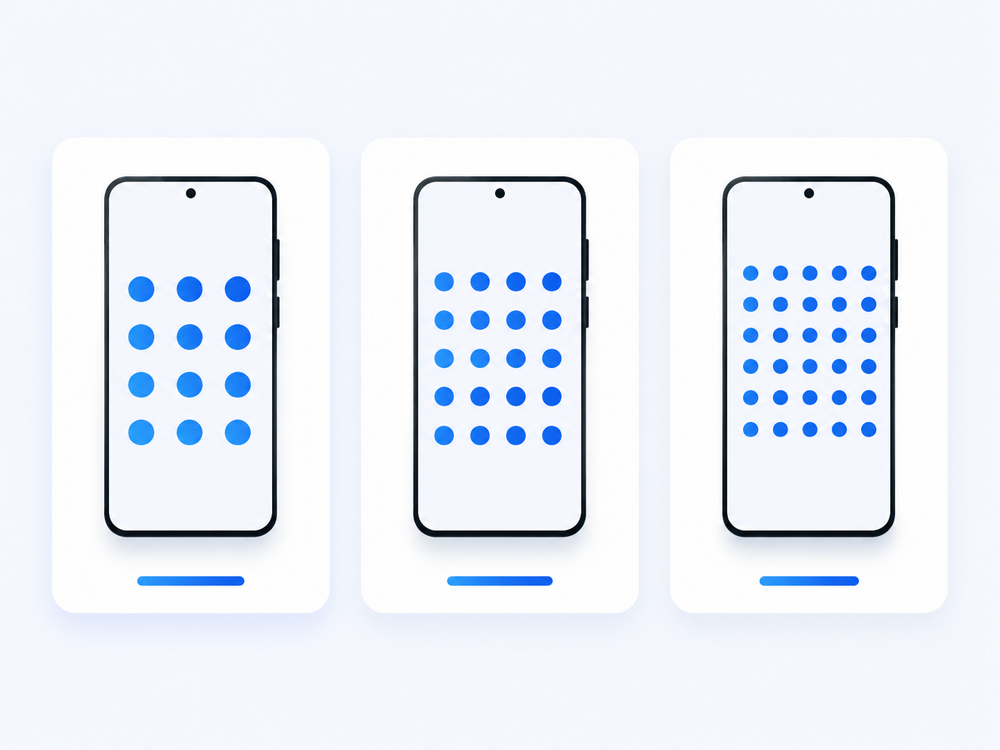
Long-press an empty part of the home screen and tap Home settings, then look for Grid or Home screen grid. You will see options like 4×5, 5×5 or 5×6.
The first number is columns. Choosing fewer columns makes every icon larger. Going from 5×5 to 4×5 makes a visible difference immediately.
Separately, in Settings → Display, you will find Font size and Display size. Font size changes text only. Display size changes text, icons and buttons together. Both have sliders you can move back at any time.
Larger touch targets are not a cosmetic preference. The W3C's Web Content Accessibility Guidelines set out minimum target sizes precisely because small targets cause mis-taps for a very large number of people, and phone makers build their accessibility settings around the same evidence.
Removing what you do not need
Press and hold an icon and drag it to Remove at the top of the screen. The app stays installed and stays in the app drawer. You are only clearing the shelf.
If you genuinely want it gone, the option is Uninstall, usually marked with a bin. They often sit next to each other, so look before you drop.
Some apps that came with the phone cannot be uninstalled. Many can be disabled instead, which hides them completely. Settings → Apps → the app → Disable. Google's Android Help centre covers which apps allow this.
An arrangement that works
If you want a starting point rather than a blank page:
Bottom row: phone, messages, camera, browser. The four you reach for without thinking.
First screen: six to eight large icons, well spaced, for daily things. Leave gaps.
Second screen: folders for occasional things. Banking, travel, shopping.
Everything else: the app drawer. Swipe up and type the first two letters to find anything instantly.
That last point is underused. The app drawer has a search box. Typing two letters is usually faster than looking for an icon, which means the case for keeping fifty icons visible is weaker than it feels.
Samsung's home screen layout guide covers the Galaxy versions of these controls, which differ slightly in naming.
Frequently asked questions
Does putting an app in a folder uninstall it?
No. A folder is only a way of grouping icons. The app stays installed and works exactly as before.
How do I make the icons on my home screen bigger?
Long-press an empty area of the home screen, tap Home settings, then Grid, and choose fewer columns. You can also increase Display size in Settings, then Display, which enlarges icons and text across the whole phone.
Can I get my old arrangement back if I do not like the new one?
There is no undo button, so it is worth taking a photo of your home screen before you start rearranging. Moving icons back manually takes a few minutes.
What is the row of icons at the bottom of the screen?
It is a fixed row that stays visible on every home screen page. It usually holds four or five apps, and you can change which ones by dragging icons in and out.
Why can I not uninstall some apps?
Some apps are installed by the phone maker or carrier and are protected. Many can be disabled instead, which hides them from view. Go to Settings, then Apps, select the app, and look for Disable.
A tidy home screen is worth the ten minutes. The best test is whether you can hit the thing you want without looking for it.
Try Messenger Chat Home
Large icons, clear text, and conversations on the home screen. Free on Google Play.
Download now