
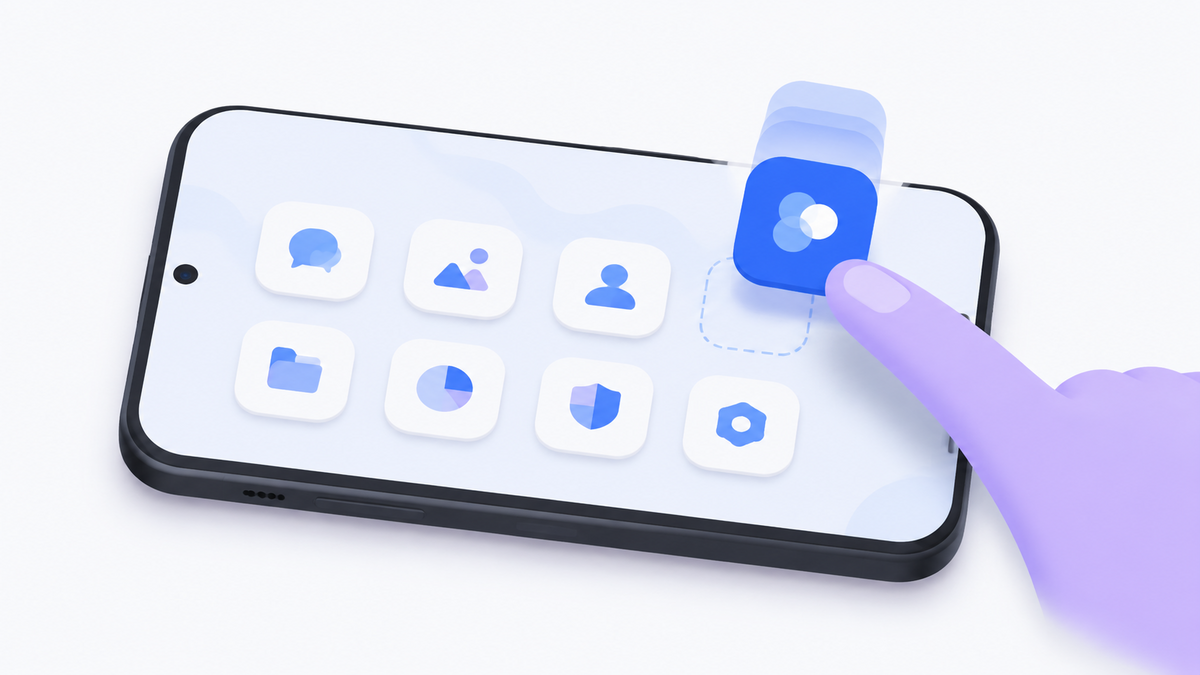
Home Screen
You installed something, and now you cannot find it. Or it was on your home screen last week and today it is not.
Apps do not put themselves on your home screen. When you install one, it goes into the app drawer, which is the full alphabetical list of everything on the phone. Getting it onto the home screen is a separate step, and it takes about five seconds once you know the gesture.
Here are three ways to do it, starting with the one that works on almost every Android phone.
Get Messenger Chat Home free
Skip the icon hunt. Your conversations sit on the home screen already.
Download on Google PlayFirst, find the app drawer
Swipe up from the bottom of your home screen. A list of every installed app appears, usually in alphabetical order.
On a few older phones there is a button instead, a circle or grid of dots near the bottom of the screen. Tap that.
This is where every app lives whether or not it is on your home screen. If you thought an app was uninstalled, check here first. It is very often still there.
Method 1: Drag it across
The standard approach, and the one to try first.
- Open the app drawer.
- Find the app you want.
- Press and hold its icon. Do not tap. Hold for about a second until it lifts slightly.
- Keep your finger down and drag the icon upward, out of the drawer. The drawer closes and your home screen appears underneath.
- Move your finger to where you want the icon.
- Lift your finger.
The most common mistake is letting go too early. Keep your finger on the screen the whole way across. If you release while still inside the drawer, nothing happens and you simply try again.
Method 2: The shortcut menu
Quicker once you know it, and easier if dragging is awkward.
- Open the app drawer.
- Press and hold the app icon.
- A small menu appears. Look for Add to Home or Add to Home screen.
- Tap it. The icon is placed on the first free space.
Not every phone offers this, and the wording varies. Samsung says Add to Home. Stock Android often shows a small preview you drag from instead.
Method 3: Straight from the Play Store
When you install something new, the Play Store often shows an Add to Home screen option on the confirmation screen. Tap it and the icon is placed automatically, saving you the trip to the app drawer.
If you missed it, use method 1.
When dragging will not work
A few situations where the gesture fails, and what to do.
The home screen is full.
Android will not place an icon if there is no room. Swipe left to an empty page and drop it there, or remove something you do not use.
You are holding too briefly.
A tap opens the app. A hold picks it up. If the app keeps launching instead of lifting, hold for a full second before moving.
The layout is locked.
Some phones have a setting that prevents home screen changes. Long-press an empty area of the home screen, tap Home settings, and look for a lock option.
It is a work phone.
If your employer manages the device, an administrator may have fixed the layout. You will usually see a small briefcase icon somewhere if this applies.
Google's Android Help guide to organising apps covers the standard behaviour if your phone differs from what is described here.
Adding a widget instead
A widget is a live panel rather than a shortcut. A weather widget shows the temperature without opening anything. A messaging widget shows recent conversations.
- Press and hold an empty part of the home screen.
- Tap Widgets.
- Scroll to the app you want and press and hold its widget.
- Drag it into place and lift your finger.
Widgets take up more room than an icon, and many can be resized after placing by holding them and dragging the handles at the edges. Android's widget documentation explains what widgets are able to do, which is useful for understanding why some update live and others do not.
Removing an icon without uninstalling
Worth knowing, because people avoid tidying their home screen for fear of deleting something.
Press and hold the icon and drag it to Remove at the top of the screen. This takes it off the home screen only. The app stays installed and stays in the app drawer.
Uninstall is a different option, usually with a bin icon, and that one does remove the app. On most phones they sit side by side, so read before you drop.
Frequently asked questions
Why is a newly installed app not on my home screen?
New apps go into the app drawer rather than onto the home screen. Swipe up from the bottom of the screen to open the drawer, then drag the icon out to place it.
Does removing an icon from my home screen uninstall the app?
No. Dragging an icon to Remove takes it off the home screen only. The app stays installed and remains in the app drawer. Uninstall is a separate option.
Why will the icon not move when I drag it?
You are most likely tapping rather than holding. Press and hold for a full second until the icon lifts, then move your finger without releasing.
Can I have the same app on the home screen twice?
Yes. Android allows the same app to appear in more than one place, including inside a folder and on the main screen at the same time.
What is the difference between an icon and a widget?
An icon is a shortcut that opens the app. A widget is a live panel that shows information on the home screen itself, such as recent messages or the weather, without opening anything.
Once you know the hold-and-drag gesture, this becomes automatic. The larger question is whether the things you use most should need an icon at all.
Try Messenger Chat Home
Your conversations on the home screen, no icon to find. Free on Google Play.
Download now