
How to Change Your Home Screen on Android
Home Screen
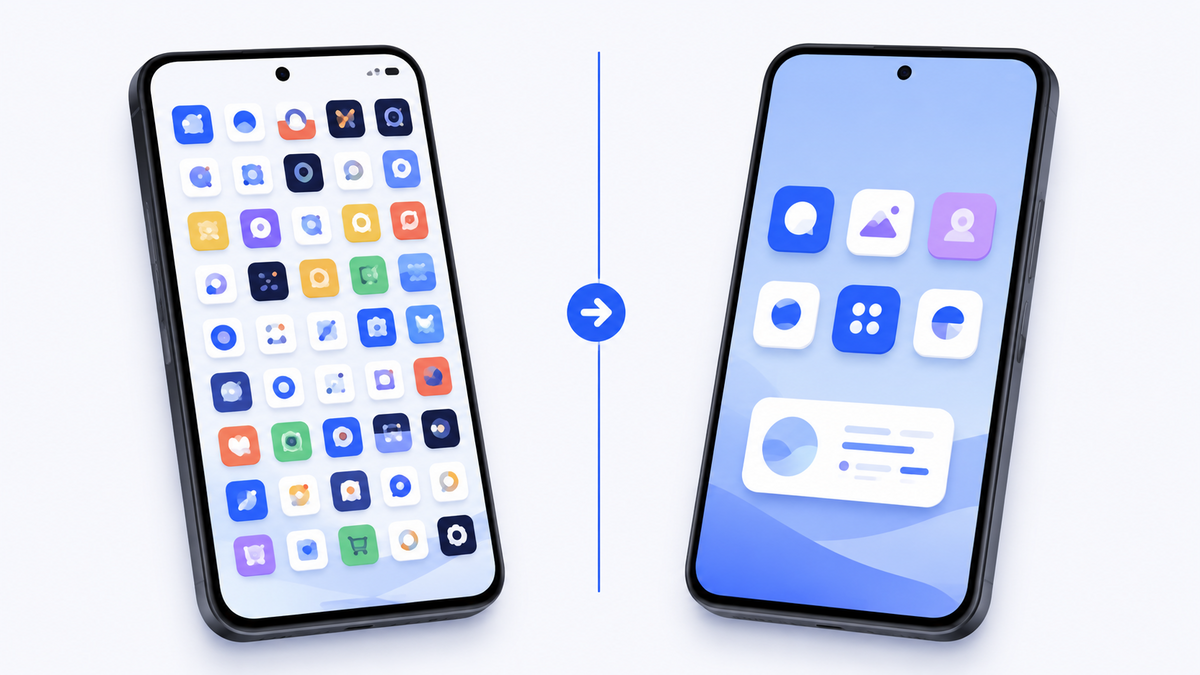
Most people assume the home screen is simply part of the phone. Something the manufacturer decided, fixed in place, no more changeable than the shape of the case.
On Android it is not. The home screen is a piece of software like any other, and you can swap it for a different one. Android calls that piece of software the home app, and changing it is a single setting.
This matters if your current home screen is too cluttered, the icons are too small, or you spend longer than you would like hunting for the thing you actually wanted.
Get Messenger Chat Home free
A home screen built around your conversations, not around app icons.
Download on Google PlayWhat the home screen actually is
When you press the home button, something has to decide what appears. That something is the home app.
It controls the grid of icons, the wallpaper behind them, the app drawer you reach by swiping up, and any widgets sitting on the screen. Android treats it as a replaceable component, which is documented in the Android Developers guide to app categories, where the home role is defined like any other.
Your phone came with one already installed. Samsung ships one, Google ships a different one, Motorola another. That is why two Android phones can look nothing alike while running the same operating system underneath.
The important part: nothing is deleted
This is the sentence worth reading twice, because it is the thing that stops most people from trying.
Changing your home screen does not remove a single app, message, photo or contact. It changes the layout you look at. Everything on the phone stays exactly where it was.
If an icon is not where you expect after switching, swipe up from the bottom of the screen. That opens the app drawer, which lists everything installed on the phone in alphabetical order. Your apps are all there.
And you can switch back in under ten seconds. There is no commitment.
How to change it
- Open Settings, the grey gear icon.
- Tap Apps.
- Tap Default apps. Samsung phones say Choose default apps.
- Tap Home app.
- Select the one you want.
The change happens immediately. Press the home button and you will see the new layout.
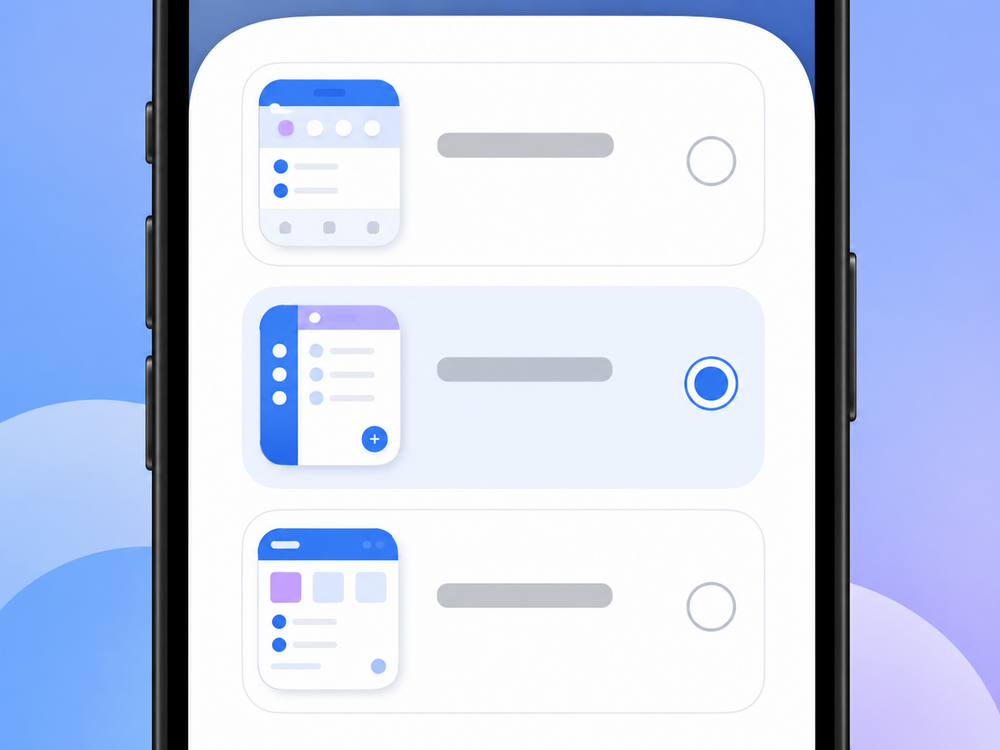
If Home app does not appear in that list, it usually means only one home app is installed. Install another from the Play Store and the option will appear.
How to change it back
Same path. Settings, then Apps, then Default apps, then Home app, then pick your original.
Your old layout returns as it was. Icon positions, folders and widgets are remembered by each home app separately, so switching away and back does not scramble anything.
What to look for in a home screen
A few things worth weighing, whichever direction you go.
Readability. Can you read the labels without leaning in? Some home screens use larger text and bigger touch targets by default. This makes more difference day to day than almost anything else.
How many taps to the thing you use most. If you text more than you do anything else, count the taps it currently takes to reach a conversation. For most people it is three or four. It does not have to be.
Clutter. A screen with forty icons is harder to use than a screen with eight, even though it holds more. Being able to hide what you never open is worth more than being able to display everything.
Speed. A home screen that takes a moment to appear after you press home will irritate you every single day.
The reasoning behind bigger text and larger touch targets is set out in the W3C's Web Content Accessibility Guidelines, and phone makers apply the same principles in their accessibility settings.
Making your existing home screen better without replacing it
If you would rather not switch, three adjustments help most.
Make everything bigger. Settings, then Display, then Font size and style, and Settings, then Display, then Display size. These affect the whole phone.
Reduce the grid. Long-press an empty part of the home screen, tap Home settings or Grid, and choose fewer columns. Fewer, larger icons.
Remove what you never use. Long-press an icon and drag it to Remove. On most phones this takes it off the home screen without uninstalling it. It stays in the app drawer.
Samsung's own home screen customisation guide covers the Galaxy-specific versions of these.
Frequently asked questions
Will changing my home screen delete my apps?
No. Changing your home screen only changes the layout you see. Every app stays installed on the phone. Swipe up from the bottom of the screen to open the app drawer and you will find all of them listed.
Can I go back to my original home screen?
Yes, at any time. Go to Settings, then Apps, then Default apps, then Home app, and choose your original. Your previous layout returns as it was.
Why does my phone look different from another Android phone?
Phone makers install their own home app. Samsung, Google and Motorola each ship a different one, so two phones running the same version of Android can look very different.
Will a new home screen use more battery?
Generally no. A home app is only active while you are looking at the home screen. Some heavily animated ones use slightly more, but simple layouts typically use less than the one your phone shipped with.
Do I need to be technical to do this?
No. It is one setting in the Settings app and takes about thirty seconds, and it can be undone just as quickly.
Your home screen is the screen you look at more than any other. It is worth having it work the way you do.
Try Messenger Chat Home
Free on Google Play. Large, clear text and your conversations one swipe away.
Download now